

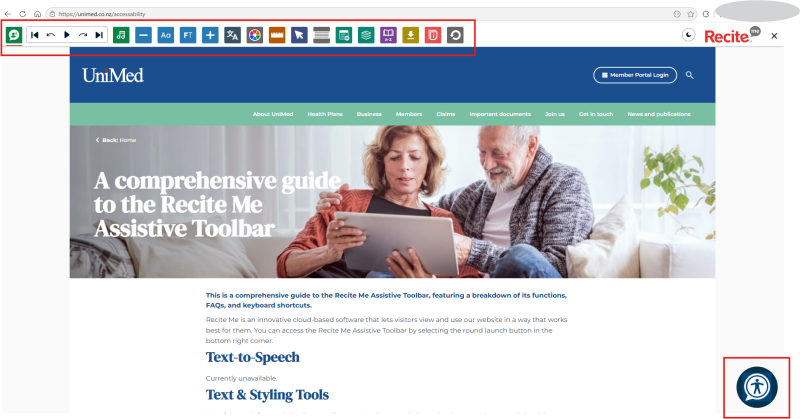
This is a comprehensive guide to the Recite Me Assistive Toolbar, featuring a breakdown of its functions, FAQs, and keyboard shortcuts.
We’re making our website more inclusive with the Recite Me Assistive Toolbar.
Visitors can now personalise their experience and access content in the way that works best for them. Features include:
- Reading aids for focus and comprehension
- Customisable styling options
- Translation into 100+ languages
Recite Me is an innovative cloud-based software that lets visitors view and use our website in a way that works best for them. You can access the Recite Me Assistive Toolbar by selecting the round launch button in the bottom right corner.
Language Options
Translate content into any language.
Text & Styling Tools
15% of the world’s population is neurodivergent. Recite Me assistive technology enables our website visitors to customise the appearance of a website. Users can customise the website’s colour scheme as well as the text, font style, size, colour, and spacing.
Decrease Size: Decrease text size.
Change Font: Change the font of the text on the page.
Focus Text Mode: Highlight half of a word in bold to improve readability.
Increase Size: Increase text size.
Colour Options: Customise background colour and text colour.
Focus Tools
While reading content, it can sometimes be hard to focus on one area. To simplify use and support our website visitors, the Recite Me Assistive Toolbar provides five main tools: ruler, cursor options, screen mask, page options and page structure.
Enable Ruler: Adds a ruler to the page to make reading easier.
Cursor Options: Increase or decrease cursor size and edit colour.
Enable Screen Mask: Focus on a specific section of the website.
Page Options: Includes Pause Animations, Hide Images, View Image Text and Plain Text Mode.
Page Structure: Allows you to navigate the site via Landmarks, Headings and Links.
Reading Aids
774 million people in the world cannot read or write, and 10% of people have a learning disability, so reading content online can be a challenge for some people. To simplify use and support our website visitors, the Recite Me Assistive Toolbar provides three main tools: a dictionary, a page summariser and simplified content.
Use Dictionary: Search for definitions of words on the page.
Page Summary: Summarise all content on a page into a paragraph.
Simplified Content: Making content easier to read whilst keeping the key messages.
Other
Download Reader Audio: Download sections of the text to speech audio.
Reset Toolbar: Reset the website to its default state.
View our accessibility statement, launch this tutorial and see more about Recite Me.
Keyboard Controls
Navigation
Next Toolbar Icon: TAB
Previous Toolbar Icon: SHIFT + TAB
Select: SPACE
Features
Toggle Text to Speech: CMD + OPTION + Z
Skip to Controls: CMD + OPTION + L
Play: CTRL + OPTION + P
Stop: CTRL + OPTION + S
Move Player Controls: CTRL + SHIFT + ARROWS